How do digital loyalty cards work?
Customers join your programme, save a branded card to Apple Wallet or Google Wallet, and present it during eligible visits. Your team scans the card to award stamps, points or another configured benefit. When the customer qualifies, staff redeem the reward under your programme’s rules.
There are two phone journeys: the customer holds the wallet card; the business uses the scanner. Keeping that distinction clear makes the programme easier to explain, demonstrate and run.
The complete journey at a glance
| Stage | Customer action | Staff or system action | What a successful test shows |
|---|---|---|---|
| Join | Scan the business’s QR code or open its signup link | Present the offer and configured signup fields | The correct business and reward are visible |
| Save | Select the wallet option and follow the prompts | Issue the customer’s card | The pass opens in the customer’s wallet |
| Identify | Present the saved card on a later visit | Scan it using the business scanner | Staff reach the correct customer record |
| Earn | Make a qualifying purchase | Record the eligible stamp, points or activity | Progress reflects the actual purchase |
| Redeem | Request an earned reward | Check eligibility and record redemption | The reward cannot be casually counted twice |
Step 1: customer signup
Place a QR code at the point where customers can act on it: checkout, the reception desk or the booking follow-up. Explain the offer next to the code. “Scan to join” asks for effort without explaining the benefit; “Collect eight qualifying drinks, then choose your reward” tells the customer why to scan.
The customer opens your signup page and completes the fields your programme requires. Keep those fields proportionate to the programme. A café does not need a customer’s full address to award a drink stamp.
Joining the rewards programme and agreeing to marketing should be explained separately. A member identifier is not blanket permission for every future campaign. See the ICO’s electronic marketing guidance when planning UK messages.
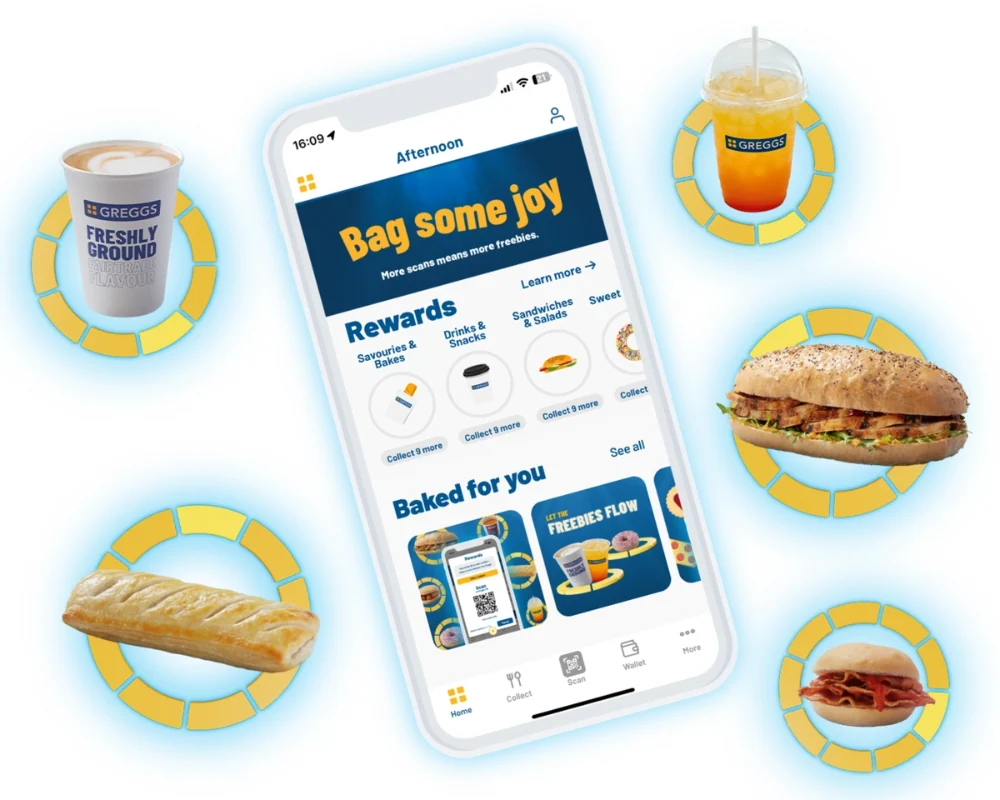
Greggs: make the programme easy to find
Greggs’ published app image presents its reward categories within the customer experience. Use it to think about finding the programme again after enrolment.
Source: Greggs Rewards programme.
Step 2: add the card to a wallet
On a supported iPhone, the customer follows the Add to Apple Wallet journey. On a supported Android phone, they follow the Google Wallet option. If their Android wallet is not installed or ready, they may need to complete that setup first.
The customer should open the saved pass once before leaving. This confirms that they have the card, rather than just an open signup page in their browser.
Apple and Google document their own pass handling in the iPhone Wallet guide and Google Wallet loyalty-card help. The MSTRMND signup journey provides the issued card; customers should not have to find your business in a general merchant search first.
Step 3: present the card for a scan
At the next eligible purchase, the customer opens the card. Staff use the scanner app to identify the member and record the qualifying activity.
This is a scan between the business’s device and the customer’s displayed card. It is different from scanning the signup tent and different from making a contactless payment.
| Code or action | Where it appears | What it is for |
|---|---|---|
| Signup QR code | Counter sign, booking message or website | Open the programme’s joining page |
| Customer card code | Saved loyalty pass | Identify that member when staff scan it |
| Payment tap | Payment terminal | Pay for the purchase; loyalty recording depends on your setup |
Step 4: award the qualifying activity
Your rules determine the award. For a stamp programme, specify whether the customer earns one stamp per item, per transaction or per visit. For points, define the eligible spend and rate.
The scanner process must match those rules. A successful scan identifies the customer; it does not prove the purchase qualifies. Staff still need to apply the offer correctly, or use a verified integration that records the relevant transaction.
Check the card and customer record after the first award. Allow for connectivity and synchronisation rather than promising that every phone will refresh instantly in every situation.
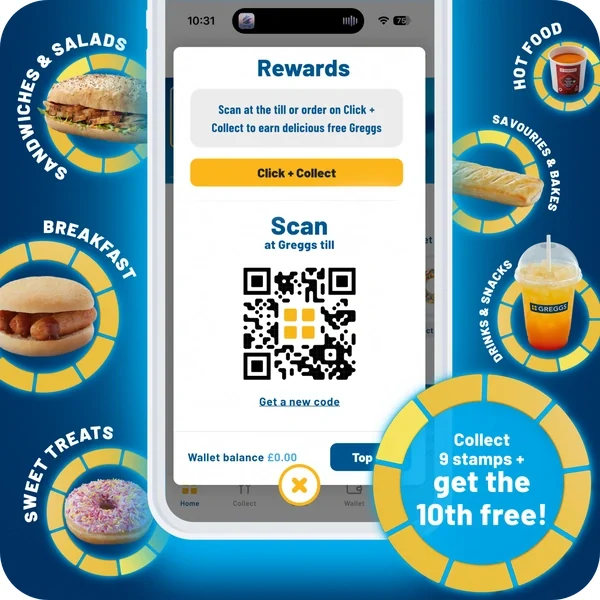
Give the customer an obvious scan screen
Greggs makes its till-scanning action explicit. It is an app-based reference for presenting a customer code, not a demonstration of MSTRMND’s separate staff scanner.
Source: Greggs Rewards programme.
Step 5: redeem the reward
Staff check the available reward, confirm that the chosen item or service qualifies, and record redemption. They should know what happens afterwards: does a stamp cycle restart, does a points balance reduce, or is a coupon marked as used?
A clear earning rule with a vague redemption rule is an unfinished programme. Test the final step before inviting your first customers.
What information does the business see?
MSTRMND’s customer view can bring together the registration details and activity recorded through the programme, including visits, spend and last visit. The exact record depends on your chosen fields, staff workflow and integrations.
| Record | How it enters the programme | Avoid assuming |
|---|---|---|
| Signup details | Customer completes configured fields | Every field is necessary for every business |
| Visit or award | Staff scan and record qualifying activity | Every person entering the shop was recorded |
| Spend | Entered or supplied through a configured integration | Scanning a card reveals every item on the receipt |
| Reward redemption | Staff or the supported workflow records its use | A displayed balance proves incremental sales |
| Communication preference | Captured through your permission process | A wallet installation permits unrestricted marketing |
Common problems and the first check
| Problem | First thing to check |
|---|---|
| Customer scanned but cannot find the card | Did they complete the Add to Wallet step? |
| Staff cannot scan the code | Is the full code visible, bright enough and in focus? |
| Customer expects more stamps | Does the per-item or per-visit rule match what staff said? |
| Progress looks unchanged | Was the award saved, and are the devices connected? |
| Reward appears to have been used already | Check the redemption record before making an adjustment |
Pro tip. Test with a staff member who did not design the programme. Ask them to join, find the card again, award a purchase and redeem a reward without coaching. Their questions are your launch checklist.
Frequently asked questions
Does scanning the signup QR code add a stamp?
Not necessarily. The signup code starts enrolment. Whether joining or the first purchase earns anything depends on the programme rules and configuration.
Is the customer scanning the staff phone?
During signup, the customer scans the business’s signup QR code. On later visits, staff scan the customer’s saved wallet card to record qualifying activity.
Does the card work without a separate customer app?
Yes, MSTRMND uses wallet passes rather than requiring a dedicated MSTRMND customer loyalty app. The relevant wallet still needs to be available on a supported phone.
Will paying automatically update the card?
Do not assume so. The staff scanner or a configured integration records the award. Confirm your actual checkout process during setup.
Do I need a new POS system?
The staff-scanning journey can sit alongside your existing checkout process. If you want transaction-linked awards, confirm support for your specific POS, locations and transaction types.
Can staff correct a mistake?
Agree a correction process and the necessary permissions before launch. Train staff to verify the customer and transaction rather than repeatedly scanning to compensate.
Can I send everyone who joins a WhatsApp promotion?
Joining and marketing permission are separate decisions. Use an appropriate permission process, respect opt-outs and check the requirements for your campaign and recipients.
Watch the full process before you launch
Book a demonstration, then use the loyalty scheme setup guide to prepare your own offer.